
ARMember Manage Members
How to Manage Members from the Admin Panel Using the ARMember Plugin
ARMember offers a versatile and intuitive dashboard that allows administrators to manage members efficiently and conveniently.
Filters
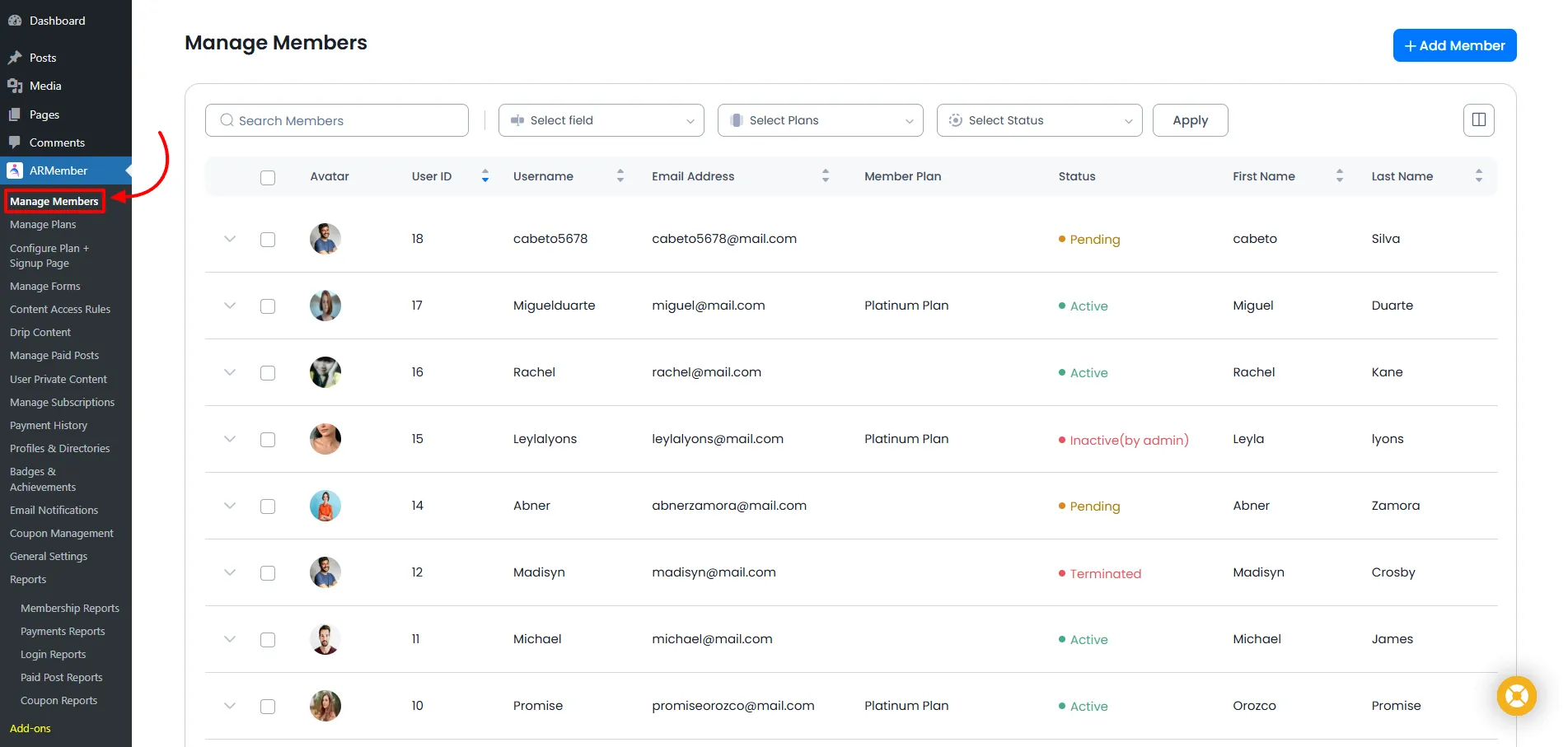
ARMember Member Management provides powerful filtering options to help you quickly locate specific members.
You can use the search box at the top of the grid or apply the following filters:
- Search by Field (First Name, Last Name, Username, Email, Gender, etc.)
- Membership Plans
- Status (Active, Inactive, Pending, etc.)
- Membership Type (Single or Multiple Membership, if Multiple Membership Add-on enabled)
Show/Hide Columns
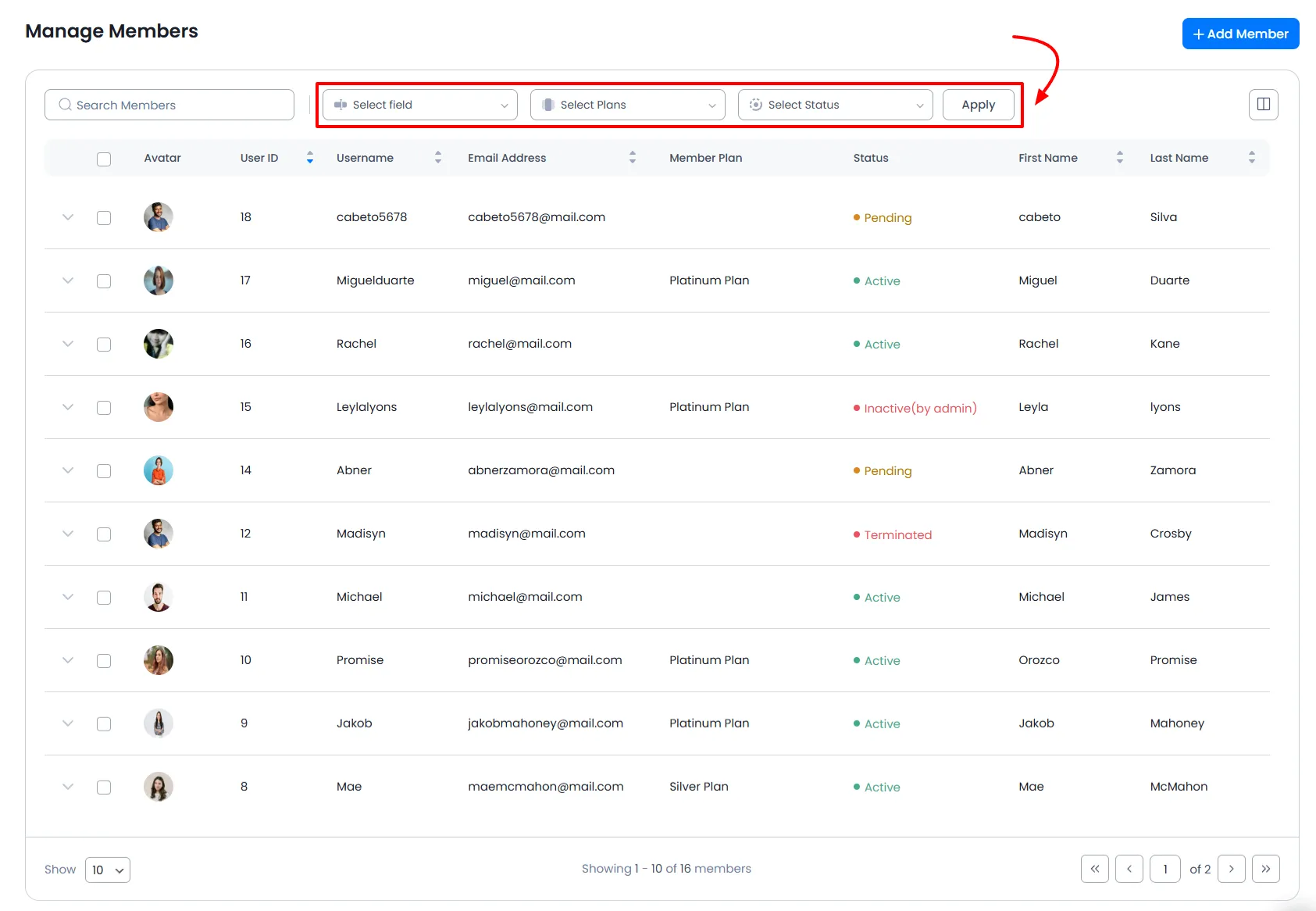
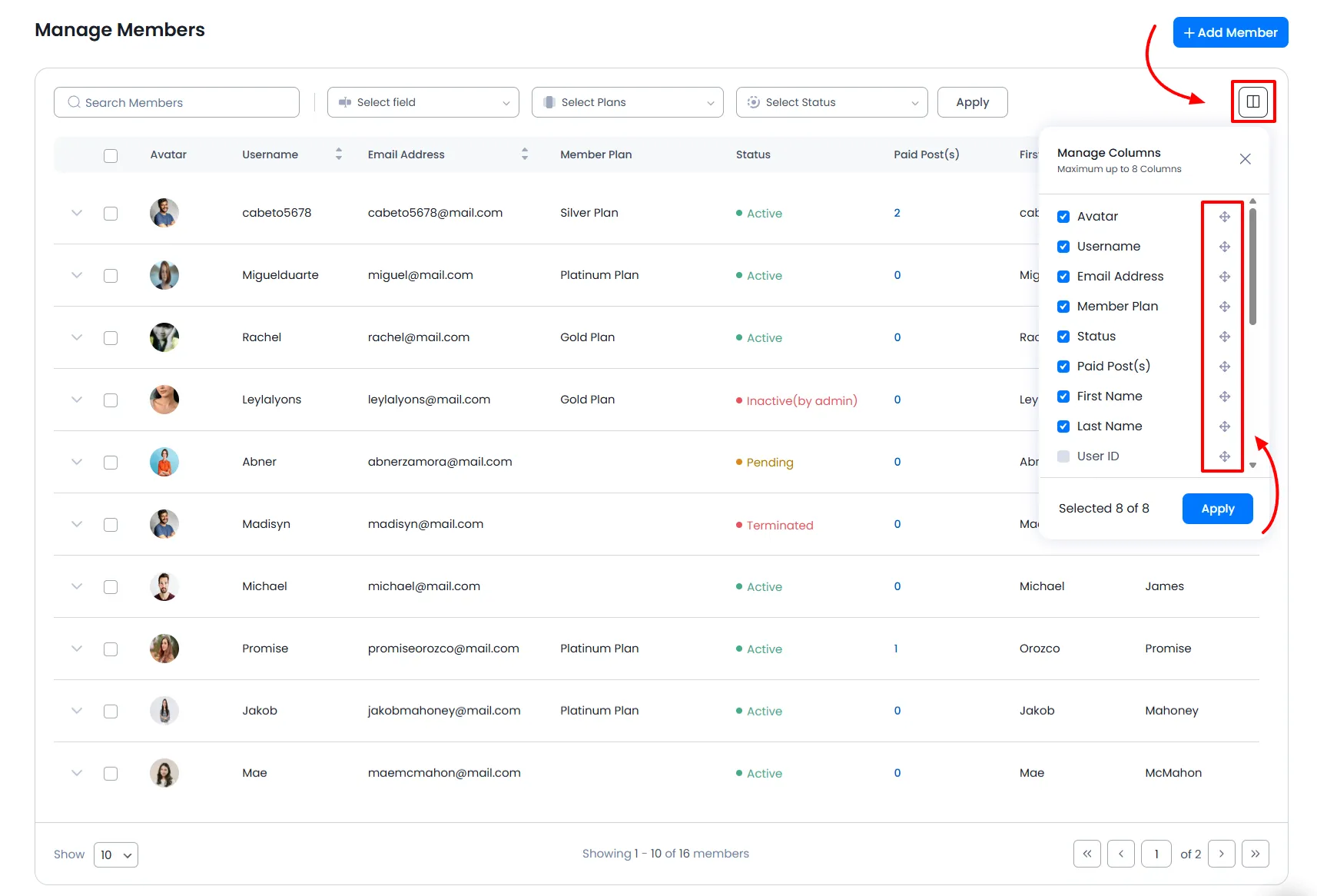
The ARMember Manage Members page gives you the flexibility to select up to 8 columns you wish to view for daily purposes. This feature gives admins the facility so they can select the important fields fixed at the columns.
Reorder/Rearrange Columns
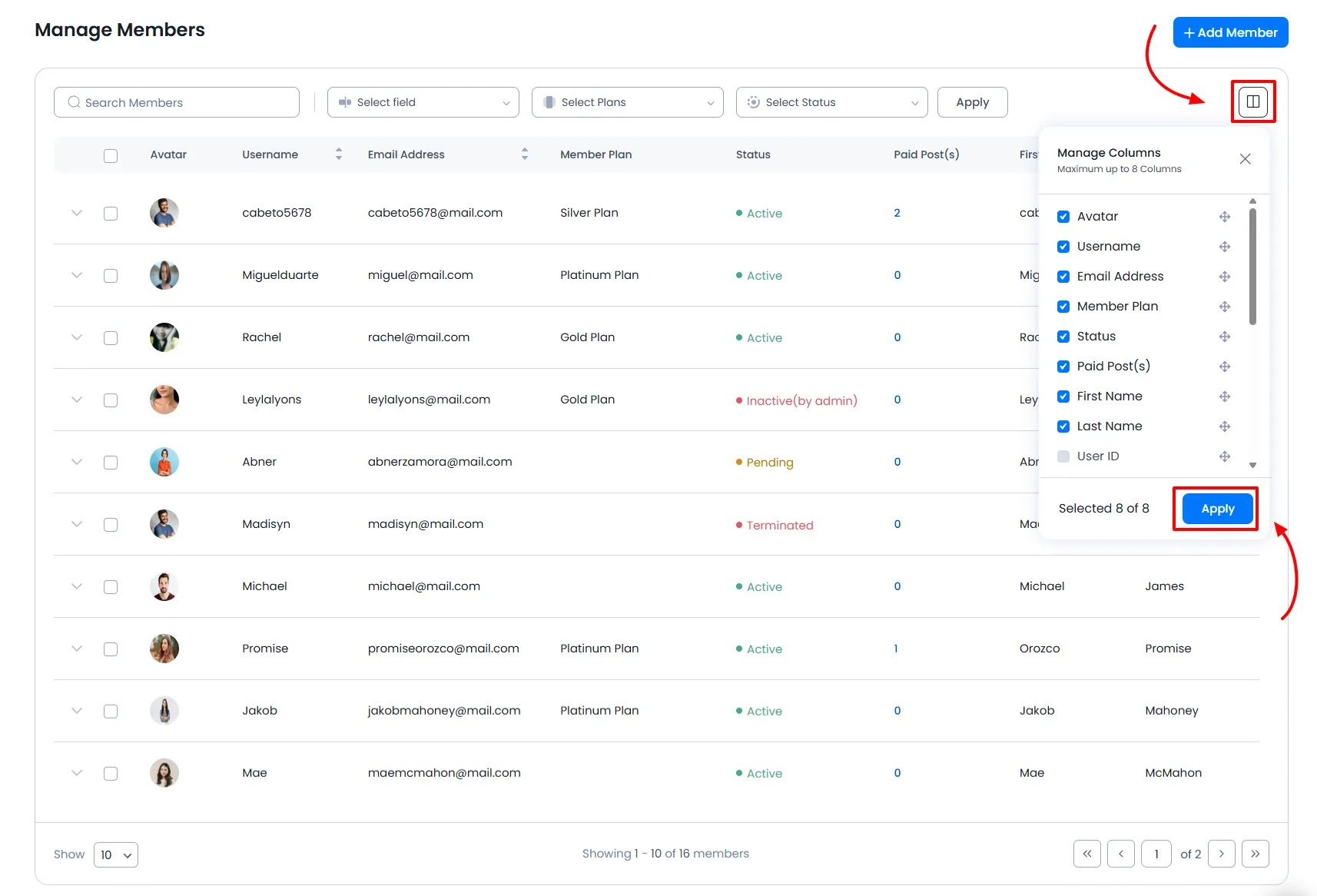
ARMember also offers a facility to reorder or rearrange the columns as per your requirements. So you can set and select the view of the Manage Members page as per your requirements by reordering the fields. You can simply drag and drop the columns through the icon as shown below.
Each row in the member grid includes multiple action options that allow you to view other details, edit information, manage plans, update member status, resend emails, and delete members. Below is a detailed explanation of each option.
Expand Row
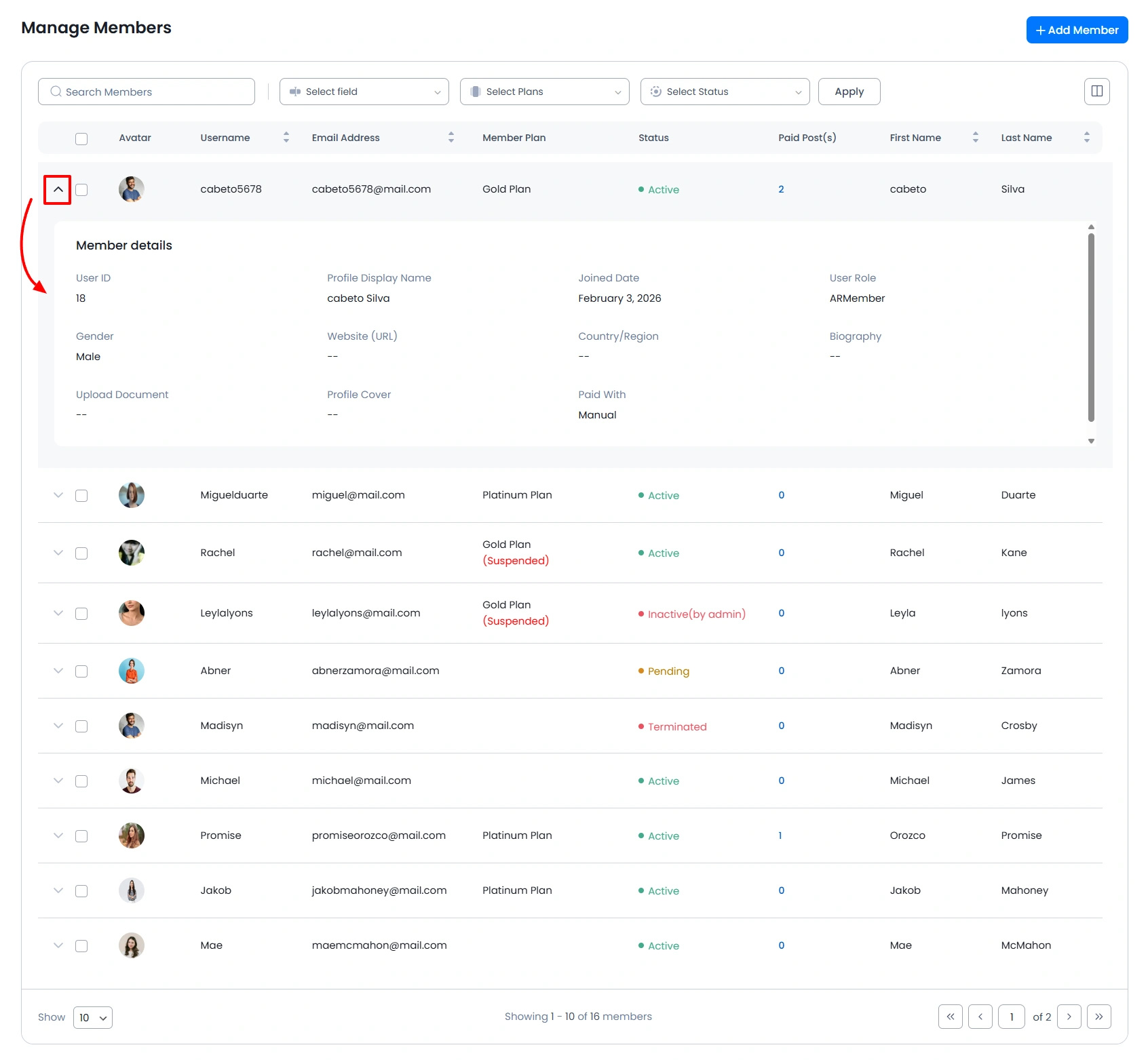
ARMember does provide a facility to check out the custom fields data via expanding the row. You can view basic information like Roles, Paid With, Joined Date, Profile Display Name, Avatar, etc. With this you can easily access the member’s details without opening other pages.
Other Details
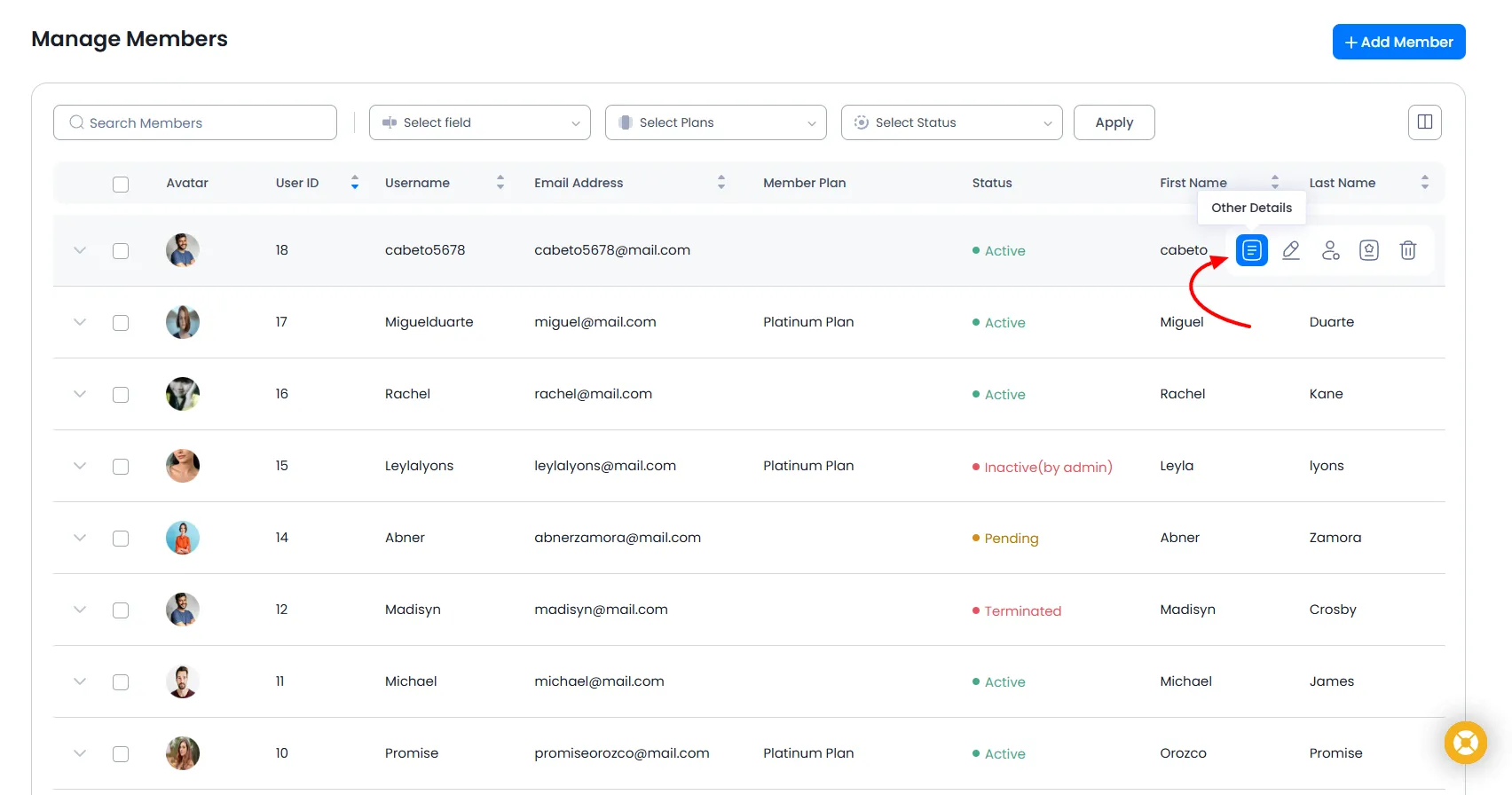
Each row includes Other Details an icon on the right side. Clicking this icon redirects you to the member’s detailed profile page.
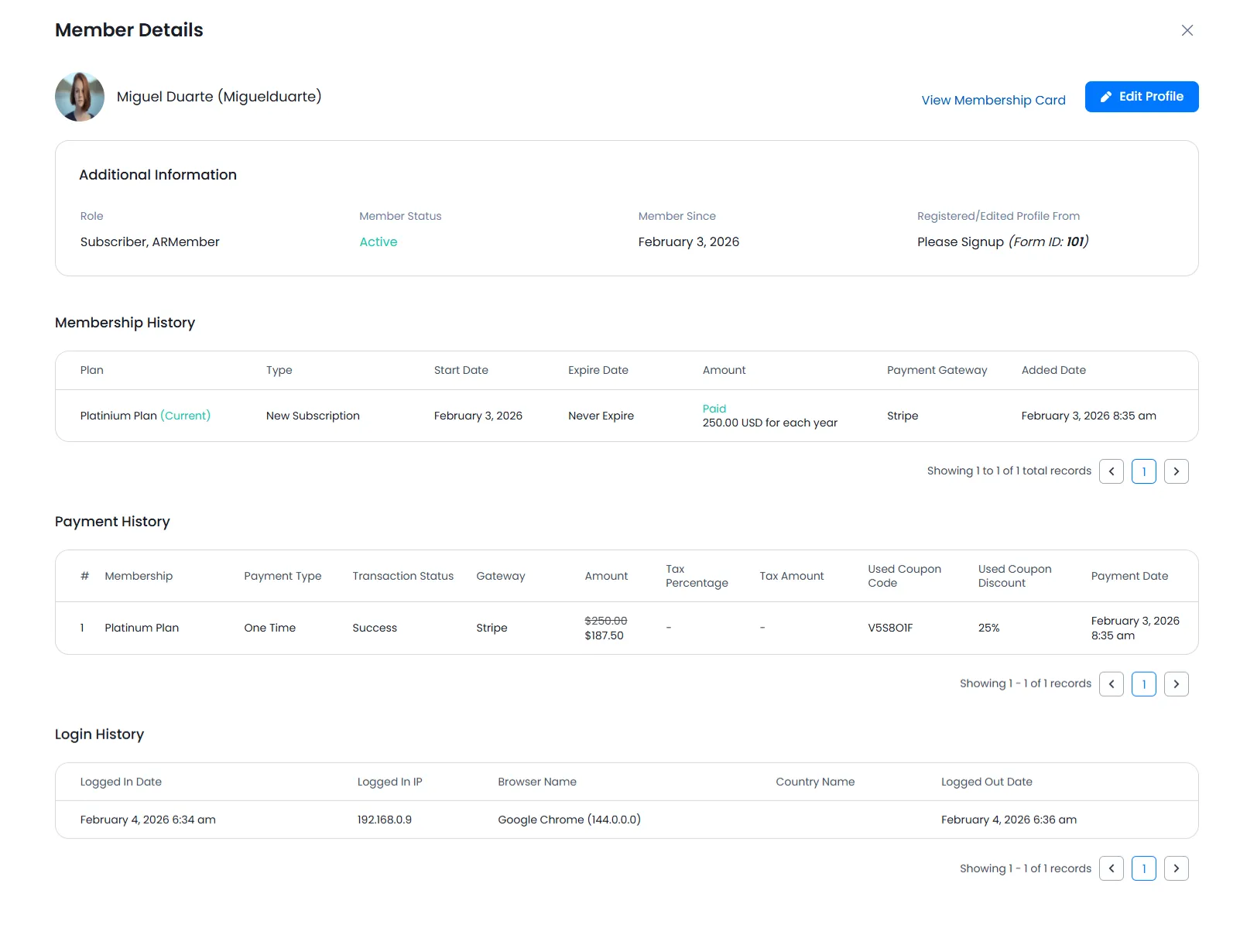
On the member detail page, you can access the following sections:
Additional Information
Displays the member’s basic information, like role, the registration form used during signup, and member status.
Membership History
Displays all subscription records and membership-related events for the user.
Payment History
Shows all payment transactions related to purchased membership plans.
Login History
Shows all logged-in history related to the member.
Edit Member
- Click the
Edit Membericon in any row to update member details.

Important Note: As per the WordPress standards, once a username is created, it cannot be changed.
You can update the following details:
- Email Address
- Password
- First Name & Last Name
- User Role
- Membership Plan
- Member Status
- Extend Days in Current Cycle
- Renew Next Cycle.
- Other custom field information
Important Notes:
- Extend Days in Current Cycle – Extends the renewal date for a specific user.
- Renew Next Cycle. – Skips one subscription cycle for the user.
- These options only work for subscription-based plans using the semi-automatic payment method.
Important: When an administrator changes a member’s plan, it is recorded in Membership History as a new subscription with the payment type marked as Manual.
When a member registers using a specific registration form, that form and its fields remain associated with the user and are available on top during profile updates.
Change Status

Click the Change Status icon to update a member’s status. A confirmation popup will appear with four available status options:
- Active
- Pending
- Inactive
- Terminate
- New user approval is set to Email Verified Approve in General Settings.
- The member’s status is not yet active.
- Plan
- Next billing date
- Plan expiry date
- Payment type
- Plan start date
The member is verified and allowed full access.
The member has not yet verified their account. Verification is typically completed via email confirmation. You can manually activate the user and notify them. To enable notification emails, configure it at ARMember → Email Notifications → Automated Email Messages → Add New Response → On Manual User Activation
Important: This option is only available when the user status is Pending.
The user cannot log in until reactivated. The membership plan remains assigned.
Terminating a user removes the assigned membership plan. Unlike inactive status (temporary), termination is considered permanent.
Resend Email
This option is available only when:
You can resend the account verification email to the selected user.

Manage Plans
The Manage Plans icon allows administrators to view detailed membership plan information, including

Delete
Click the Delete icon in a member’s row to permanently remove the member from the system.
